
Changelog

Follow new updates and improvements to Astra Security.

Jira Integration: Two-Way Sync, Easier Setup
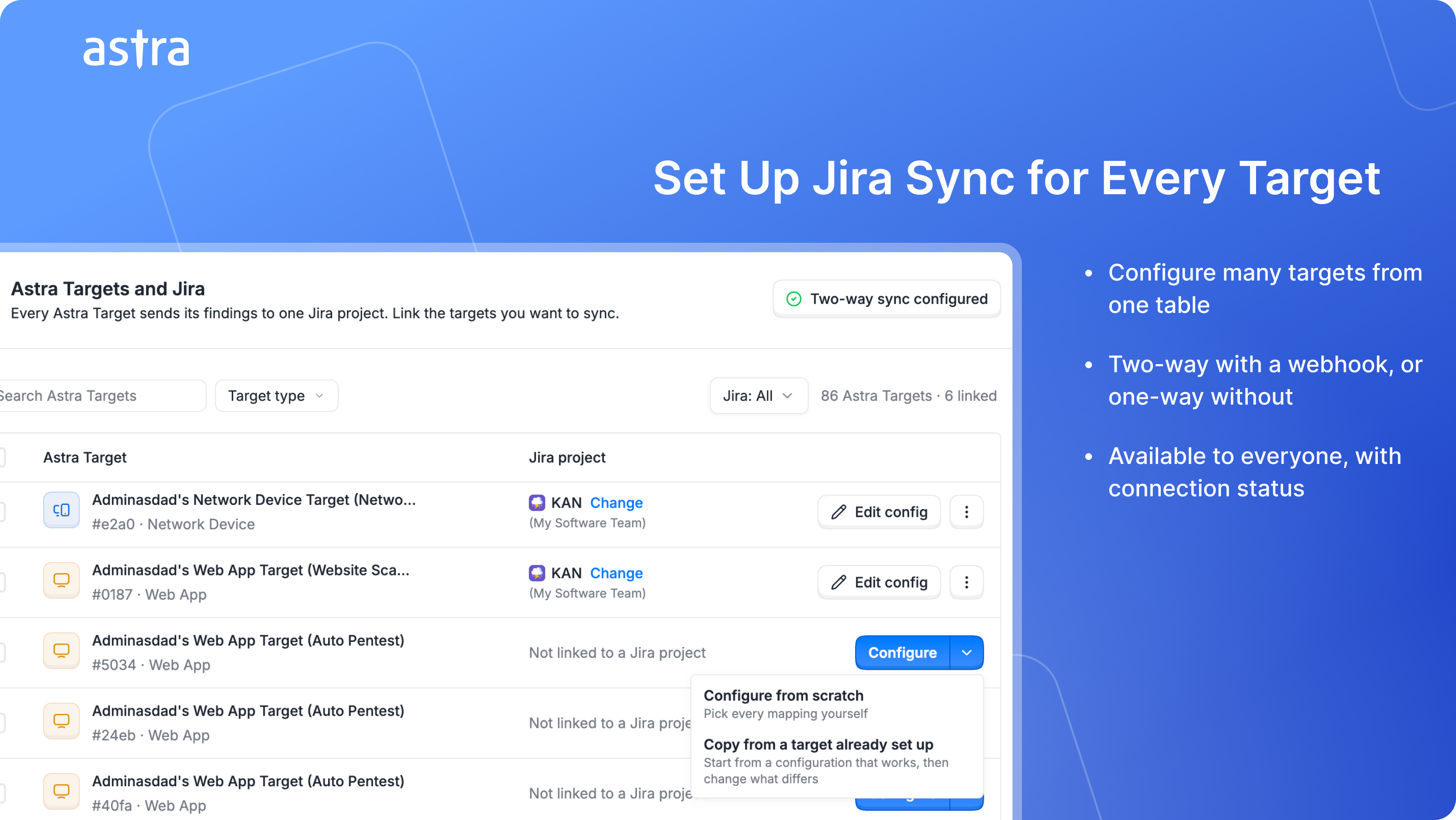
Keeping Astra and Jira in step shouldn't mean configuring every target by hand. Jira sync is now available to everyone, with a new setup flow that lets you configure many targets at once.

What's new

  • Two-Way or One-Way, Your Choice – Set up the webhook and changes in Jira flow back to Astra, so sync runs both ways. Skip it and Astra still creates and updates your Jira issues automatically, one way.

  • One Place for Every Target – See each target next to its Jira project in a single table. Link, configure, or edit from there. Select multiple targets to configure them together, or copy the setup from a target that's already working.

  • Guided Configuration – A step-by-step setup covers the Jira project, issue types, status, priority, custom fields, and webhook. Custom fields can fill in automatically for each issue, such as a date Astra works out or text that includes the target name or severity.

  • Know Your Connection Is Healthy – The Jira card shows whether Astra can currently reach your Jira.


Less time setting up sync, more time fixing what matters. Give it a try and tell us what you think.
New

Astra MCP

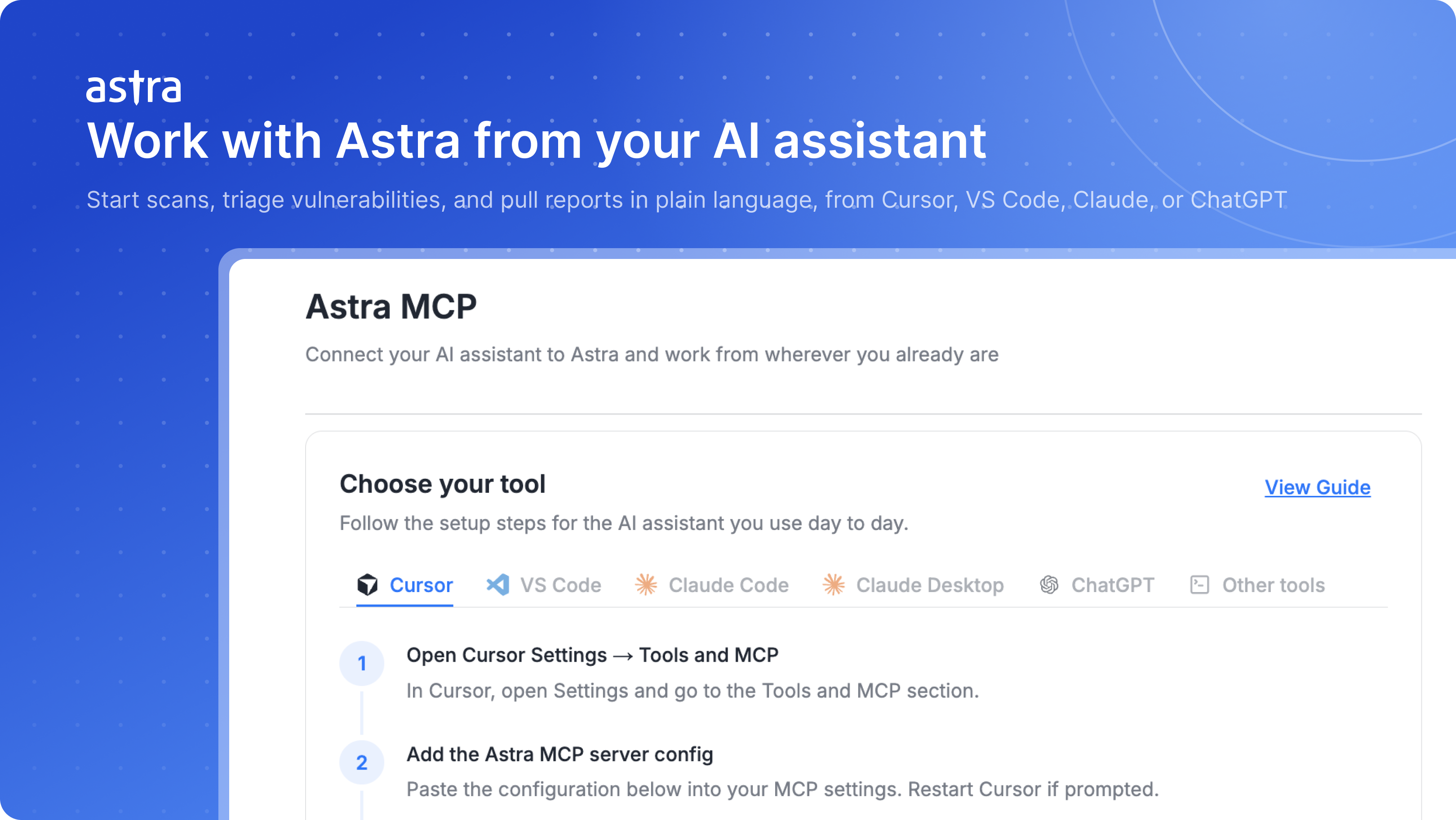
Your security data already lives in Astra. Your work happens in Cursor, VS Code, Claude, and ChatGPT. Astra MCP connects the two, so you can start scans, triage vulnerabilities, and pull reports by asking in plain language, without switching tabs to the dashboard.

What's new

  • Connect in Minutes – Guided setup under Settings → MCP for Cursor, VS Code, Claude, ChatGPT, and any tool that supports remote MCP.

  • Your Permissions, Not Extra Access – Sign in with your Astra account. The assistant only sees workspaces you already have.

  • Ask in Plain Language – Copy a ready-made prompt to start or schedule a scan, prioritise open vulns and draft a fix, generate a report, or see which targets haven't been scanned in 30 days.

New

Custom Labels for Targets

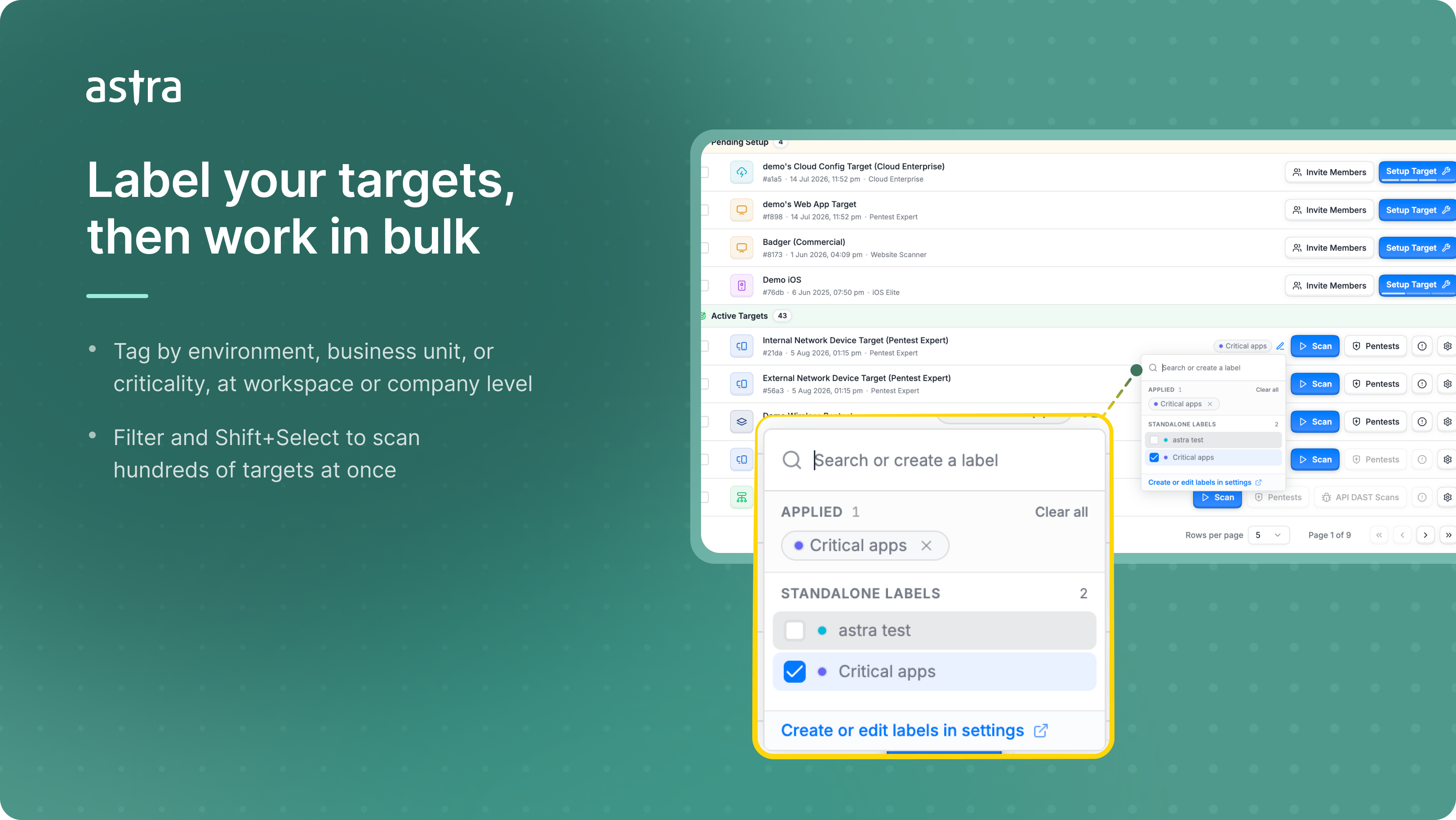
Managing a handful of targets is easy. Managing two hundred across five teams is not. Labels let you tag targets the way your organization already thinks about them, by environment, business unit, or criticality, then filter, select, and act on them in bulk instead of working down a flat list one row at a time.

What's new

Workspace and Company Labels – Create labels scoped to a single workspace, or company-wide so every team shares the same taxonomy. Both are managed from Settings.

Two Label Types – Standalone labels stack freely, so a target can be both production and high-value. Label groups are mutually exclusive, so a target carries only one label from a group like Environment: Prod, Staging, or Dev, and nothing gets double-tagged by accident.

Assign Labels in Place – Apply or change a target's labels straight from the targets table or its settings page, without opening Settings just to tag one target.

Filter and Bulk-Select by Label – Use labels as a filter in the Target Selector or the Start Scan wizard, then Shift+Select the filtered results to scan or manage all of them together.

Give it a try and tell us what you think.

New

Earlier updates